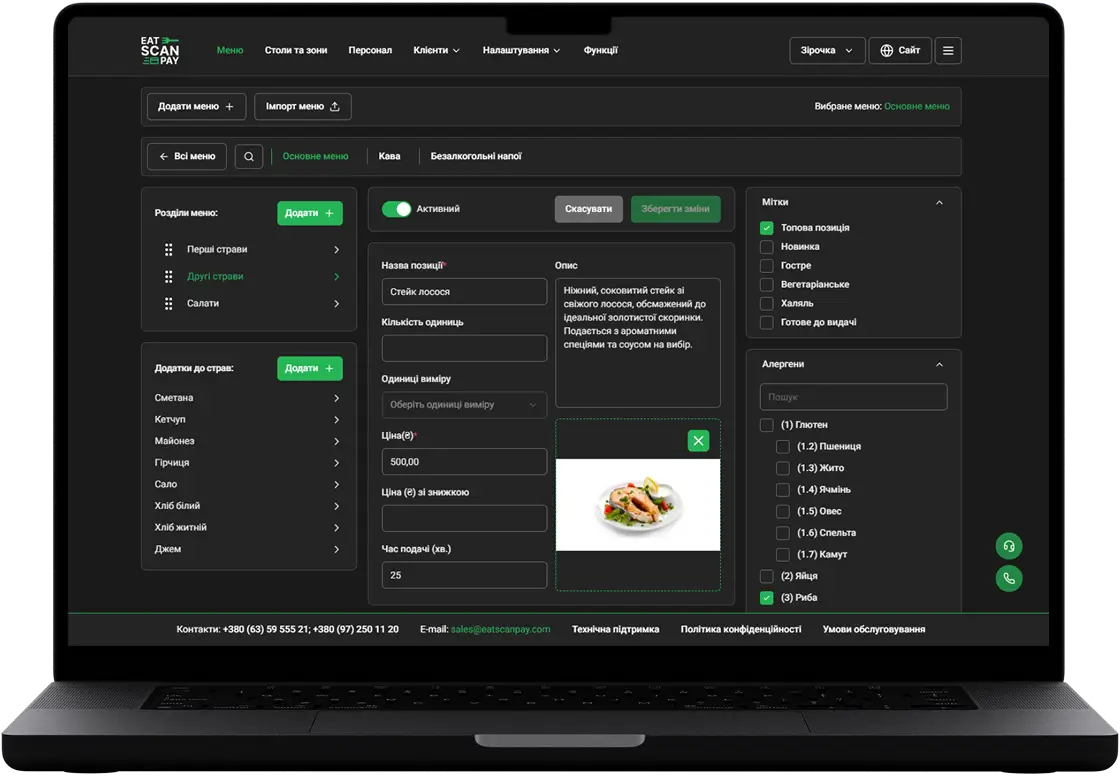
QR menu update: live order status, active orders from any page, a clear way out of a rejected order and online payment you can retry
With this QR menu update, guests watch their order move from the kitchen to the table without refreshing the page. Takeaway and delivery guests on a laptop can check their order from any page, and a failed online payment can be tried again.

Live order status in the QR menu
The order card changes on its own as your team works: Order accepted, Order is being prepared, Ready to serve and Served at the table, Ready for pickup for takeaway, Ready for courier, On the way and Order delivered for delivery. Guests stop asking the waiter where their food is. An order leaves the list only once it is served or delivered and paid, so an unpaid order stays in reach until the guest settles the bill.
Active orders from any page on a laptop
The desktop QR menu has an active orders button in the top bar, next to the cart. A takeaway or delivery guest opens it from the menu, the booking page or any other page and sees the order status in a side panel, without leaving what they were looking at.

A clear way out of a rejected order
When your team rejects a takeaway or delivery order, the guest sees Order rejected and a Got it button. One tap clears the rejected order, and the guest can order again straight away instead of staring at an order that will never come.
Online payment that is easier to finish
A failed online payment can be tried again with a fresh bank invoice, and an order that is already paid can't be charged twice. When the bank confirms the payment, the guest sees Payment received! at once and the order badge turns from Not paid to Paid. If the dishes in one basket are billed to different payment accounts, the QR menu splits the basket into separate orders, each with its own bill, so every legal entity gets paid for its own dishes.
Smaller improvements in this QR menu update
Also in this update:
- No second pay request. After a guest asks to pay with cash or a card terminal, the form shows Payment in progress! and stays locked, so the same request isn't sent twice. Staff get the request in the merchant dashboard in real time.
- Table picker from your schedule. When guests choose a table while booking, the picker lists the tables that are free at the chosen date and time in your booking schedule.
- Booking alerts for your team. The merchant dashboard tells staff before a booking starts, when a guest hasn't arrived and when a booking is canceled. You set both lead times in minutes, or 0 to turn them off.
- Lighter photos. Dish photos, the logo and menu backgrounds load as smaller previews, so the menu opens faster on mobile data.
- Booking shown only when it is on. The booking page follows both your plan and the booking setting of the venue.
We also fixed an order status that didn't update after the guest picked a payment method, and orders placed after an online payment that showed outdated details.
How to get it
Everything above is live in your QR menu, with nothing to install. Online payment needs an A-Bank payment account connected to your venue, and booking alerts and the table picker come with the Booking feature of your plan.
Previous Releases of QR Menu
- QR menu update - live order status, active orders from any page, a clear way out of a rejected order and online payment you can retry
16.09.2026
- QR menu update - the menu in your guest's language, order type in the cart, two ways to book a table and a faster menu
28.06.2026
- QR menu update - online card payment, menu working days, custom pages, cooking time and required tips
01.11.2025
Updates to other Eat Scan Pay services
POS
 15.08.2024
More details